





Quiet audio plug problems explained and easy troubleshooting tips
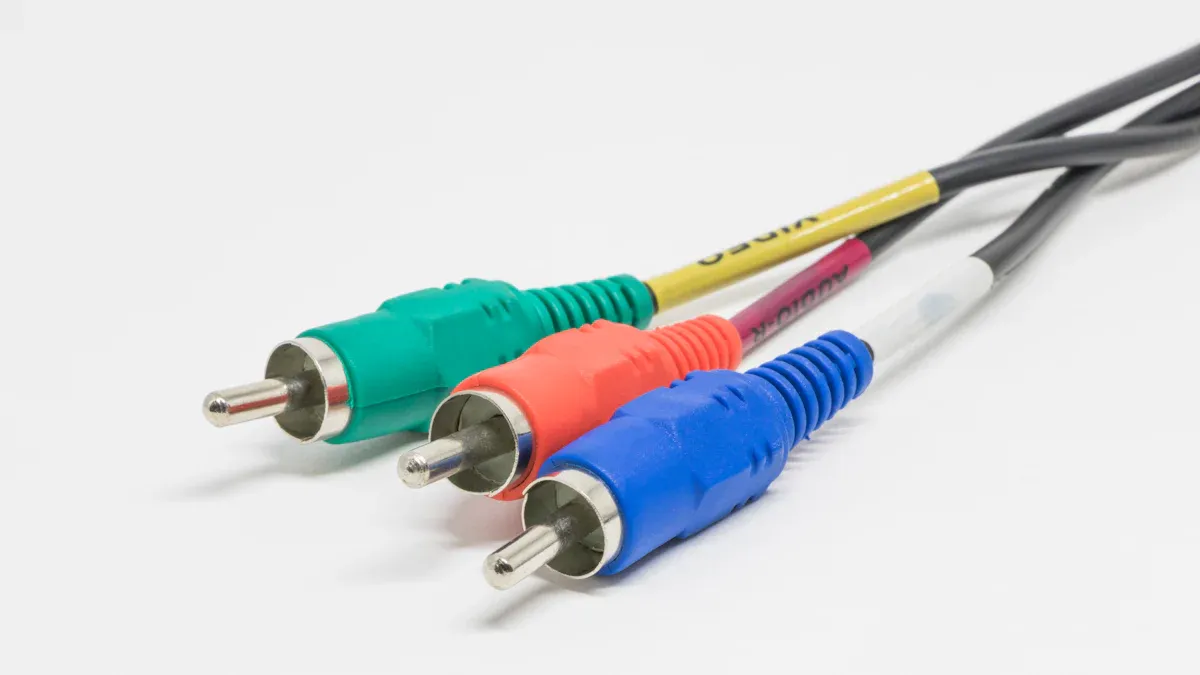
Many users experience a quiet audio plug when using headphones or connecting devices. Technical support reports show common causes include driver problems, volume misconfiguration, and software updates. Physical connection issues also contribute. Quiet instrument plug, Quiet Jack Silent audio plug, quiet plug, and noiseless audio plug problems often share similar symptoms.
- iOS 17.1 update causes low volume with USB-C to AUX adapters.
- Bluetooth and AirPods connections show similar issues.
- Windows updates can change audio driver behavior.
Key Takeaways
- Check physical connections first by inspecting and cleaning headphone plugs and jacks to fix quiet or muffled sound.
- Adjust device volume settings and sound enhancements to ensure no limits or mutes reduce headphone loudness.
- Test different audio sources and devices to find if the problem is with the headphones, device, or specific apps.
Quiet audio plug: Check physical connections
Inspect the headphone plug and jack
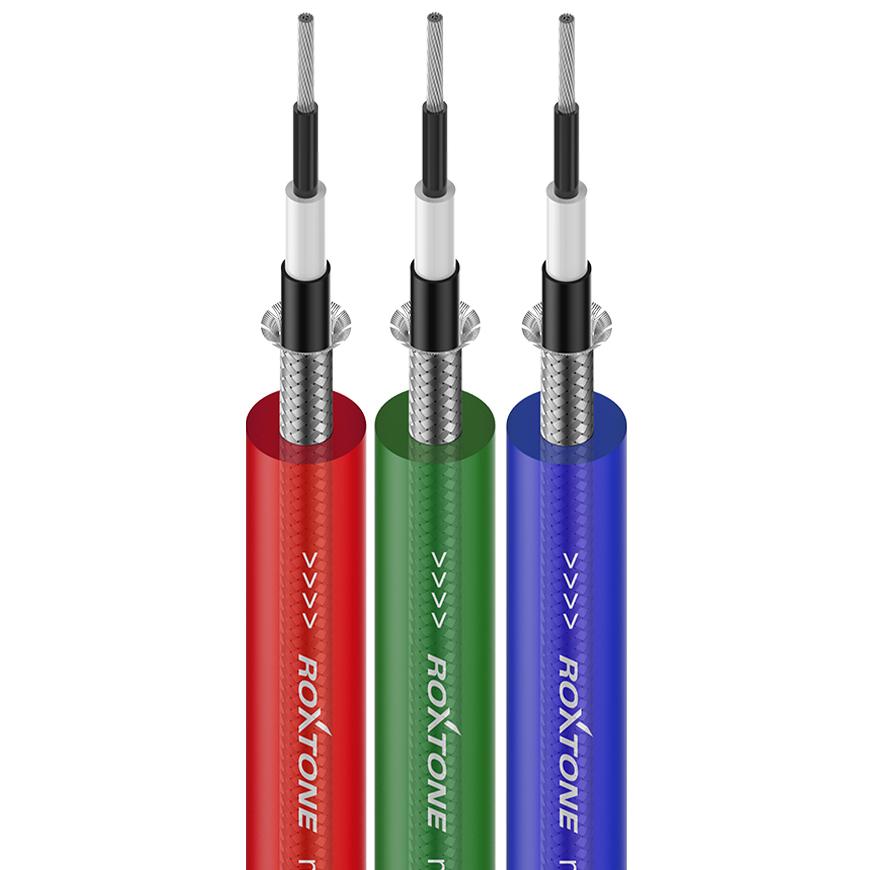
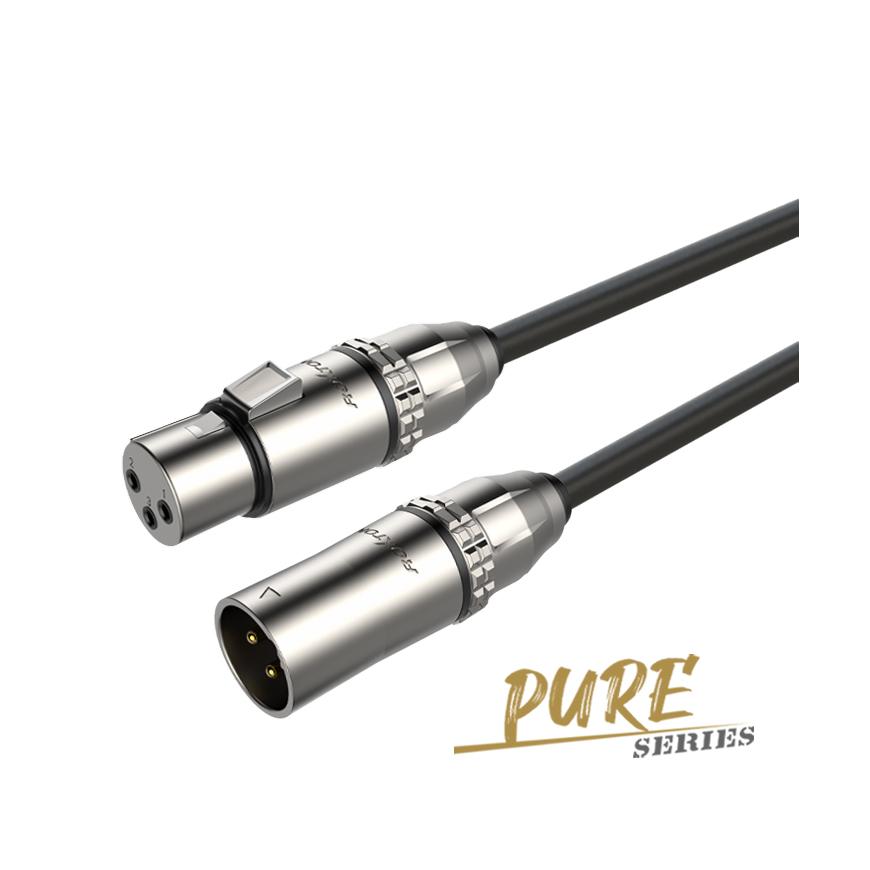
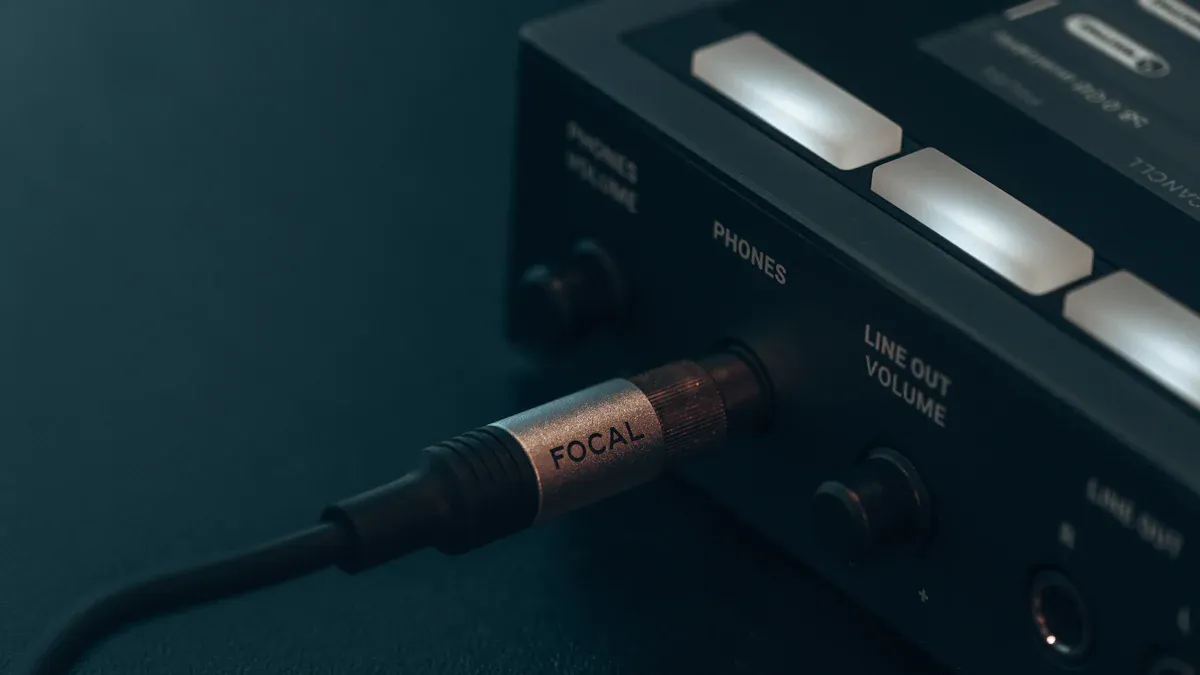
A Quiet audio plug often results from poor physical connections. Users should start by examining both the headphone plug and the device’s audio jack.Loose or improperly connected plugs can disrupt the flow of sound, leading to reduced volume or even complete audio dropouts. Many audio professionals, including those at ROXTONE, recommend checking all connections before moving on to more complex troubleshooting.
Common signs of connection issues include:
- Bent pins on the headphone plug
- Debris inside the audio jack or on the plug
- Cracks in the plastic casing of the plug
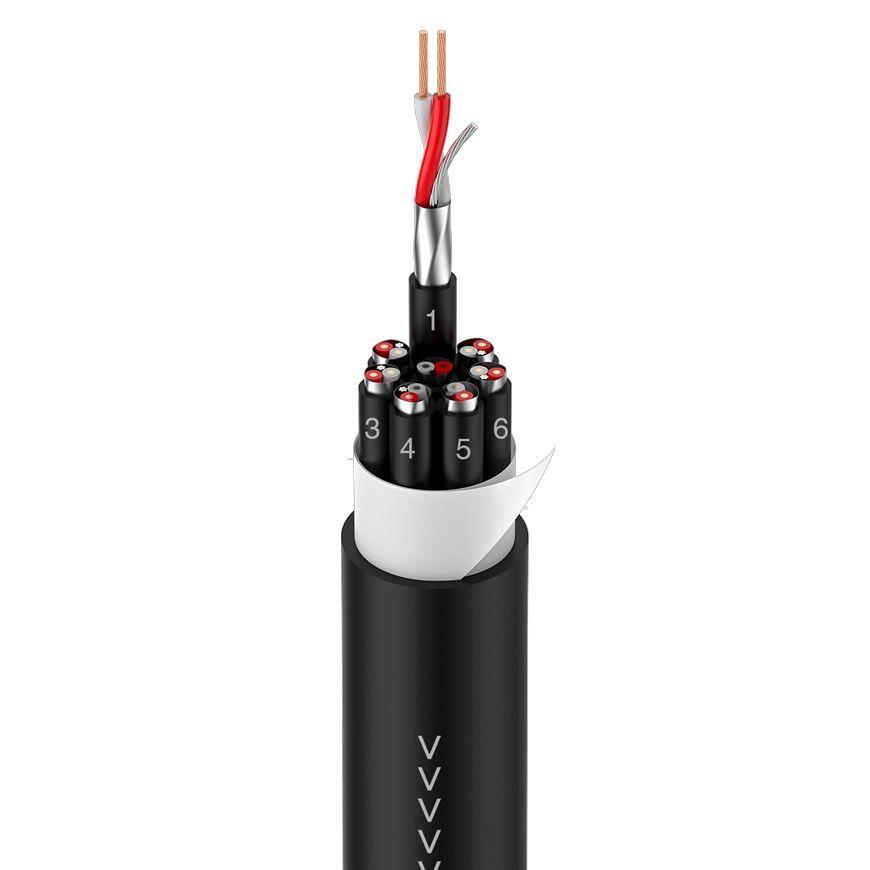
- Exposed wires or fraying near the plug on the cable
- Cracks or damage to the outer sheath of the cable
These problems can cause intermittent connections, resulting in quiet, crackling, or muffled audio. Users may also notice that the sound only comes from one side or that the volume is much lower than expected. Swapping Cables or trying a different pair of headphones can help identify if the issue lies with the plug, the jack, or the cable.
Tip: Always ensure the plug fits snugly into the jack. A loose connection can cause imbalance or reduced volume, especially at lower listening levels.
Clean the jack and plug
Dirt and debris inside the headPhone Jack or on the plug can also cause a quiet audio plug. Even a small amount of lint or dust can interfere with the electrical connection. ROXTONE recommends regular cleaning to maintain optimal audio performance.
Manufacturers suggest several safe cleaning methods:
| Cleaning Method | Description & Steps | Safety & Additional Tips |
|---|---|---|
| Compressed Air | Use a can of compressed air to blow out debris from the headphone jack without inserting anything inside. | Point nozzle close to jack; a blast or two usually suffices; safest method to avoid damage. |
| Cotton Swabs | Use a cotton swab (preferably with a thin tip) to gently brush inside the jack. For tough debris, lightly dampen with rubbing alcohol. | Power off device first; do not soak swab; let jack dry before powering on; avoid jamming swab inside. |
| Taped Paperclip | Straighten a paperclip and wrap tape sticky side up around the end to create a lint roller. Gently insert to remove lint. | Avoid scratching by not using bare metal; do not jam; follow up with cotton swab cleaning if needed. |
| Interdental Brush | Use a small dental brush dipped lightly in rubbing alcohol to gently insert and rotate inside the jack to remove debris. | Device must be off; brush should be damp, not wet; repeat 2-3 times; wait at least an hour before powering on. |
Users should always power off their devices before cleaning. After cleaning, allow the jack to dry completely before plugging in headphones or turning the device back on. Regular maintenance helps prevent quiet audio plug issues and extends the life of both headphones and devices.
Quiet audio plug: Adjust device audio settings
Check volume levels and mute settings
Many users overlook simple device settings that can cause a quiet audio plug. Incorrect volume or mute settings often limit or silence the audio output. Devices may have several controls that affect headphone volume. Users should check each one to ensure proper sound levels.
- Device volume may be set too low or muted.
- Volume limiters, such as 'Reduce Loud Sounds' on iOS or 'Media volume limit' on Android, restrict maximum output.
- Some devices have software mute toggles that silence audio without changing the main volume.
- Conflicting volume controls across apps and operating systems can reduce effective volume.
- Bluetooth headphones may have separate volume controls on both the device and the headphones.
Checking and adjusting these settings ensures the device sends a strong audio signal to the headphones. Disabling unnecessary volume limiters and confirming all mute options are off can resolve many quiet audio plug complaints.
Review sound enhancements and equalizer
Sound enhancements and equalizer settings also influence headphone loudness. Features like Loudness Equalization balance volume differences by boosting quieter sounds and lowering louder ones. This helps make all parts of the audio more consistently audible, especially when listening through headphones.
Equalizer settings adjust the amplitude of specific frequency ranges. Increasing the amplitude by 10 dB can double the perceived loudness, while a decrease of 10 dB halves it. Small changes, such as 1 dB, are subtle, but larger adjustments can drastically change the sound balance. Users should review their device’s sound enhancements and equalizer settings to ensure they are not unintentionally reducing volume. Enabling features like Loudness Equalization or adjusting the equalizer can improve the overall listening experience and help resolve quiet audio plug issues.
Quiet audio plug: Test different audio sources
Try other audio files or apps
Sometimes, a quiet audio plug results from the audio file or app itself. Some music tracks, videos, or podcasts have lower volume levels than others. Users should play several different audio files to check if the problem stays the same. Streaming apps, downloaded files, and games may all have different volume outputs. If one app sounds quiet but others do not, the issue likely comes from the app or file, not the device or headphones.
A simple checklist can help:
- Play music from different apps (Spotify, Apple Music, YouTube)
- Test both downloaded and streaming files
- Try podcasts, videos, and games
If the quiet audio plug only happens with certain files or apps, users can adjust the in-app volume or look for app-specific sound settings. This step helps narrow down the cause and saves time on unnecessary hardware checks.
Use another device or headphones
Testing headphones on another device helps identify if the problem comes from the headphones or the original device. For example, a user once tried their headphones on a different phone and found the volume returned to normal. This showed the headphones worked well, and the issue was with the first device.
Switching to a different pair of headphones or using a wired connection instead of Bluetooth can also help. Many experts recommend this step because newer headphones often provide better sound and volume. The House of Marley blog suggests that if all other fixes fail, trying a new pair of headphones might solve the problem. Testing with another device or headphones is a simple way to isolate the source of a quiet audio plug and can often lead to a quick solution.
Quiet audio plug: Look for hardware damage

Examine headphone cables and plugs
Physical damage to headphone cables and plugs often leads to a quiet audio plug. Users may notice several warning signs when cables or plugs start to fail. Distorted or muffled sound, muted audio, and sudden drops in sound quality can all point to cable damage. Sometimes, visible issues like bent or scratched pins inside the connector become obvious. Static or crackling noises may appear when the cable moves, and the sound might cut in and out if the cable gets wiggled. Poor sound quality, such as muffled audio or weaker bass, can also result from damaged cables. In some cases, sound only plays in one ear when the cable shifts position.
Common causes of these problems include damaged drivers inside the headphones, dirt or debris blocking the sound, and loose or faulty connections. Proper handling and regular inspection help prevent these issues and keep audio performance strong.
Inspect the device’s headphone jack
The device’s headphone jack can also suffer from physical damage. Bent or broken plugs may cause misalignment, which prevents the conductors from making proper contact. This misalignment often leads to audio problems like sound coming from only one speaker, static noise, or reduced volume. Damage to the internal clamping mechanism of the jack can create loose connections, resulting in static interference. Visual signs include bent plugs or a loose headphone jack. Audio symptoms may include crackling, static, cut-outs, muffled sound, distortion, or even a complete loss of audio. Regular maintenance and careful use help prevent these problems and maintain clear sound from the quiet audio plug.
Quiet audio plug: Consider compatibility and impedance
Check headphone and device compatibility
Headphone and device compatibility plays a major role in how loud and clear the audio sounds. When headphones and devices do not match well, users often notice weak or distorted sound. Compatibility depends on factors like impedance, voltage, and the type of connection. For example, low-impedance headphones work best with smartphones and laptops because these devices provide less power. High-impedance headphones need more voltage, which only some audio interfaces or amplifiers can supply. If a device cannot deliver enough power, the headphones will sound quiet.
Some common compatibility issues include:
- High-impedance headphones paired with low-power devices result in low volume.
- Bluetooth headphones may lose volume due to interference or low battery.
- Volume limiters or equalizer settings on devices can restrict output.
- Damaged cables or dirty jacks can block sound.
Tip: Always check the headphone specifications and device output before pairing. Using the right combination ensures the best sound quality and volume.
Understand impedance mismatch
Impedance mismatch happens when the headphone impedance does not align with the device’s output impedance. This mismatch can cause several problems, including reduced volume, distortion, and changes in sound quality. Low-impedance headphones (under 50 ohms) are easier to drive and reach higher volumes on most portable devices. High-impedance headphones (over 100 ohms) require more voltage and may sound too quiet on phones or laptops.
| Headphone Impedance | Best Device Match | Possible Issues with Wrong Match |
|---|---|---|
| Low (16–50 ohms) | Phones, laptops, tablets | None, usually loud and clear |
| High (100+ ohms) | Amplifiers, audio gear | Quiet sound, loss of detail, distortion |
Headphone amplifiers with adjustable gain can help match impedance and improve volume. Proper matching prevents background noise and distortion, while also protecting headphones from damage. Sensitivity, measured in dB SPL/V, also affects how loud headphones will sound at a given voltage. For the best results, users should pair headphones and devices with compatible impedance and voltage ratings.
Quiet audio plug: Try software fixes
Use volume booster apps
Volume booster apps can help users increase headphone output when standard device settings do not provide enough loudness. Many apps offer features like equalizers, bass boosters, and sound enhancements. These tools work on smartphones and computers, giving users more control over their listening experience. The following table lists some popular options and their main features:
| Platform | App/Software Name | Key Features & Effectiveness | Pros | Cons |
|---|---|---|---|---|
| Android | Volume Booster GOODEV | Simple, effective amplification for headphones and speakers | Boosts volume well; small app size | Limited features |
| Android | Wavelet (headphone EQ) | Headphone-specific EQ; advanced audio effects | Tailored sound; many features | May not support all headphones |
| iPhone | Speaker Boost - Volume Booster | Enhances speaker and headphone volume; extra high boost | Clear sound; easy controls | Limited free features |
| Windows PC | Equalizer APO | Customizable equalizer; supports many audio channels | Low CPU use; quality equalizer | Steep learning curve |
| Windows PC | Letasoft Sound Booster | Amplifies volume up to 500%; works with many apps | Automatic start; easy control | Trial version limited |
| Windows PC | FxSound | Real-time enhancement; dynamic boost; clarity, bass, ambience effects | Automatic enhancement; presets | Limited features |
Note: Users should choose an app that matches their device and comfort level. Some apps require more setup or technical knowledge.
Update or reinstall audio drivers
Audio drivers control how a device sends sound to headphones. Outdated or corrupted drivers can cause problems, including low volume or distorted sound. Many troubleshooting guides recommend updating or reinstalling audio drivers as a first step when users notice quiet output from their headphone jack. Driver issues are one of several possible causes, along with physical connection problems and misconfigured settings. Keeping drivers up to date helps ensure the best audio performance and can resolve many common sound issues.
Tip: Device manufacturers often provide driver updates on their official websites. Users should download drivers only from trusted sources.
Readers can resolve most audio issues by checking connections, cleaning jacks, and testing cables. They should avoid common mistakes like using the wrong jack or ignoring gain structure. Trying each troubleshooting step before seeking professional help often restores clear sound. Most problems do not require advanced tools or expertise.
By: Roxtone
Tel: +86 574 87154705
Fax:+86 574 56138190
E-mail: [email protected]
Facebook: Roxtone
Youtube: Roxtone
X: Roxtone